How to restart iPhone SE models depends on which generation you own. On the 2020 and 2022 models, press and hold the side button until the power-off slider appears. On the original 2016 model, hold the top button instead. If the screen is frozen, you need a force restart, which uses a different button combination for each generation.
Below are the exact steps, based on Apple’s support instructions, for a normal restart and a force restart on all three iPhone SE generations, plus two methods that do not need the buttons at all.
First, identify your iPhone SE
The steps differ between the first generation and the two later ones, so check which one you have.
| Model | How to recognize it | Power button location |
|---|---|---|
| iPhone SE (1st generation, 2016) | 4-inch screen, flat edges, headphone jack | Top edge |
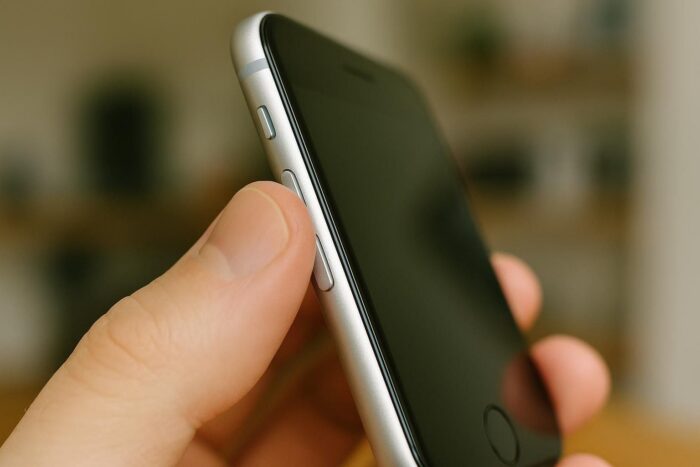
| iPhone SE (2nd generation, 2020) | 4.7-inch screen, glass back, no 5G | Right side |
| iPhone SE (3rd generation, 2022) | 4.7-inch screen, glass back, 5G | Right side |
If the phone is working, you can also go to Settings, then General, then About, and read the model name.
How to restart an iPhone SE (2nd or 3rd generation)
This is the normal way to turn the phone off and back on. Use it when the phone is slow, an app misbehaves, or Wi-Fi or Bluetooth acts up.
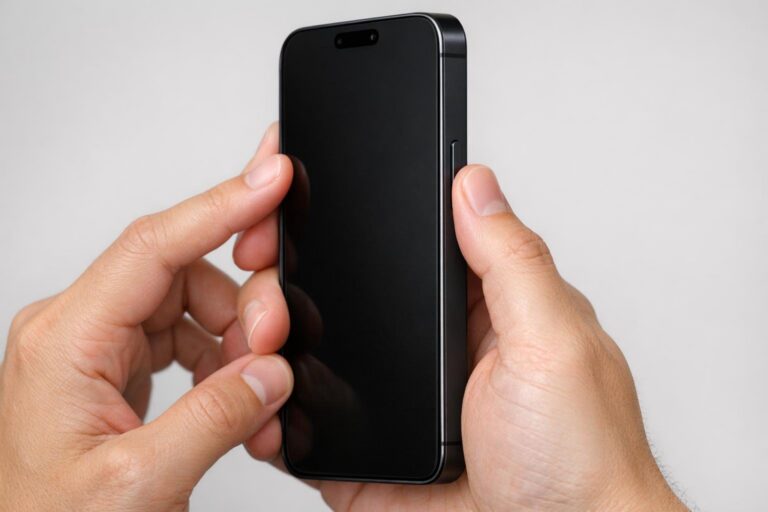
- Press and hold the side button until the power-off slider appears.
- Drag the slider to the right.
- Wait about 30 seconds for the phone to turn off completely.
- Press and hold the side button again until you see the Apple logo.
The phone will ask for your passcode after it restarts. Touch ID is not available until you enter it once.
How to restart an iPhone SE (1st generation)
The original iPhone SE uses the same body as the iPhone 5s, with its power button on the top edge.
- Press and hold the top button until the power-off slider appears.
- Drag the slider.
- Wait about 30 seconds for the phone to turn off.
- Press and hold the top button until the Apple logo appears.
How to force restart a frozen iPhone SE
A force restart cuts power to the software abruptly, without the slider. Use it only when the screen does not respond, the phone is stuck on a black screen, or it will not react to a normal restart. It does not erase your data.
iPhone SE (2nd and 3rd generation)
- Press and quickly release the volume up button.
- Press and quickly release the volume down button.
- Press and hold the side button.
- Release the side button when the Apple logo appears.
The two volume presses have to be quick taps, one right after the other. The key step is the last one: keep holding the side button until the Apple logo is on the screen, then let go.
iPhone SE (1st generation)
- Press and hold the top (Sleep/Wake) button and the Home button at the same time.
- Release both when the Apple logo appears.
Apple lists the same method for the iPhone 6s and 6s Plus, which also have a physical Home button.
Restart without using the buttons
If a button is broken or hard to press, there are two other options on supported software.
Shut down from Settings
Go to Settings, then General, then scroll down and tap Shut Down. Drag the slider to turn the phone off. To turn it back on, press and hold the side or top button, or plug the phone into a charger.
Ask Siri to restart
Since iOS 16, you can ask Siri to “restart iPhone.” Siri asks you to confirm, then reboots the phone. This works on the 2020 and 2022 models, which run current versions of iOS. The 2016 model stopped at iOS 15, so it does not support this command.
When a restart does not fix the problem
If your iPhone SE still misbehaves after a force restart, try these steps in order:
- Charge it for a while. A completely drained battery can look like a frozen phone. Use a known-good Lightning cable and adapter.
- Update iOS. The 2020 and 2022 models are compatible with iOS 27. Go to Settings, then General, then Software Update.
- Check battery health. In Settings, then Battery, then Battery Health, a low maximum capacity can cause sudden shutdowns on older phones.
- Contact Apple Support if the phone stays stuck on the Apple logo or will not turn on at all.
Frequent freezes on an aging phone can also be a sign that it is time to think about a replacement. If you are weighing whether your model is still worth keeping, our verdict on the 2022 model covers its strengths and weaknesses in 2026. And to see how every generation Apple released compares, including the phones that replaced the line, read our full history of Apple’s compact budget phone.
Restart iPhone SE FAQ
Does restarting an iPhone SE delete anything?
No. Neither a normal restart nor a force restart erases your photos, apps, or settings.
What is the difference between a restart and a force restart?
A restart shuts the phone down properly through the power-off slider. A force restart cuts it off abruptly and is meant for a frozen phone.
Why does my iPhone SE ask for a passcode after restarting?
After any restart, iOS requires your passcode before Touch ID can unlock the phone again. This is a security feature.
Is a force restart the same as a factory reset?
No. A force restart only reboots the phone. A factory reset, found in Settings under General, then Transfer or Reset iPhone, erases all content and settings, so back up first if you ever need one.