If you have finished setting up your iPhone, Apple’s Move to iOS transfer cannot be run without erasing the iPhone and starting setup again. To keep the iPhone as it is, transfer supported items manually, then install your apps from the App Store.
Before choosing, consider what matters most: Apple’s instructions explain how to move contacts, calendars, photos, videos, music, books, PDFs, and documents manually. Apple’s setup-time transfer includes message history and WhatsApp messages and media, so check your needs and back up anything already on the iPhone before erasing it.
Choose between starting over and transferring manually
According to Apple Support, using Move to iOS after setup means erasing the iPhone and beginning the setup process again. If you do not want to erase it, Apple directs you to transfer content manually.
That choice matters most if you want data that is handled during initial setup. Apple lists contacts, SMS messages, message history, photos and videos, files, calendars, and WhatsApp messages and media among the items Move to iOS can transfer. Its manual-transfer instructions cover many everyday files, but do not give a manual method for moving SMS or WhatsApp history after setup.
If you decide to erase the iPhone, first make a backup of anything already stored on it. The Apple instructions say to erase and start again, but do not give the price or duration of the process.
Move contacts and calendars through your account
For contacts and calendars, Apple’s manual method is to add the relevant email accounts to the iPhone. The iPhone works with providers including Google, Microsoft Exchange, and Yahoo, so account-synced contacts and calendars can appear after you sign in.
This is a useful route if you want to preserve the iPhone’s current setup. Add the account you used on Android, then check whether the contacts and calendar information you need are available. Apple’s guidance does not describe a separate manual process for transferring SMS history.
Copy photos and videos with a computer
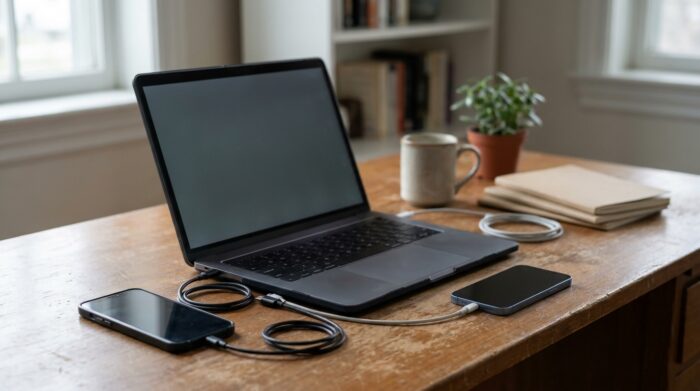
Apple’s manual guide recommends using a computer to copy photos and videos. Connect the Android device, find the files, and copy the ones you want to a folder on the computer. Apple says they are often in the Android device’s DCIM folder.
Then connect the iPhone and sync the files from the computer. On a Mac, the app depends on the macOS version: Apple names Finder for Catalina or later and iTunes for Mojave or earlier. On a PC, use the Apple Devices app. The transferred photos and videos appear in the iPhone’s Photos app.
This route involves a computer and a separate sync step. The Apple instructions do not specify how long copying or syncing will take.
Bring over documents, books, and music
If your documents are already stored in Google Drive, Dropbox, or Microsoft OneDrive, install the service’s app on the iPhone and sign in. Apple also says you can bring files together with the Files app.
For locally stored documents, connect the Android device to a computer and copy the files to a folder. Apple says documents are often in the Documents folder. From there, sync them to the iPhone using Finder, Apple Devices, or iTunes, depending on the computer and macOS version.
Books and PDFs can be copied through a computer, or opened through compatible apps such as Kindle or Google Play Books after installing the app and signing in. For locally stored music, copy songs from the Android device to a computer, then add and sync them using the appropriate Apple app. For streaming music, install the service’s iPhone app and sign in.
Reinstall apps and check app data
Download the iPhone versions of your apps from the App Store. Apple says that if you need help moving data for a third-party app, contact that app’s developer. App availability and what data an app can restore depend on the app; Apple’s manual guide does not give a single transfer method for all app data.
Use this practical sequence if you are keeping the iPhone as set up:
- Add your email account to bring in supported contacts and calendars.
- Copy photos and videos through a computer and sync them to the iPhone.
- Sign in to cloud storage apps, or copy local documents through a computer.
- Install music, book, and other apps from the App Store, then sign in where needed.
- Check with app developers about data that does not return after signing in.
Frequently asked questions
Can I use Move to iOS after setting up my iPhone?
Not without erasing the iPhone and starting setup again, according to Apple. If you want to keep the existing setup, transfer content manually instead.
Can I transfer Android photos to an iPhone after setup?
Yes. Apple’s manual method is to copy photos and videos from the Android device to a computer, then sync them to the iPhone. The files are often stored in the Android device’s DCIM folder.
Can I move contacts and calendars without erasing my iPhone?
Yes. Add the email account used for those contacts and calendars to the iPhone. Apple lists Google, Microsoft Exchange, and Yahoo among compatible providers.
Can I transfer SMS or WhatsApp chats after setup?
Apple lists SMS and WhatsApp messages and media as content moved through its setup-time transfer. Its manual instructions do not describe a way to move that history after setup, so check before erasing the iPhone.
Do I need to reinstall Android apps?
Yes. Search for the apps in the iPhone’s App Store and install them. For data in a third-party app, Apple advises contacting its developer.