To check storage on an iPhone 13 mini, open Settings, tap General, then tap iPhone Storage. The screen shows available space, storage use by app, and any recommendations iOS offers. Review those options before deleting content, and remember that iPhone storage and iCloud storage are separate.
Check how much space is available
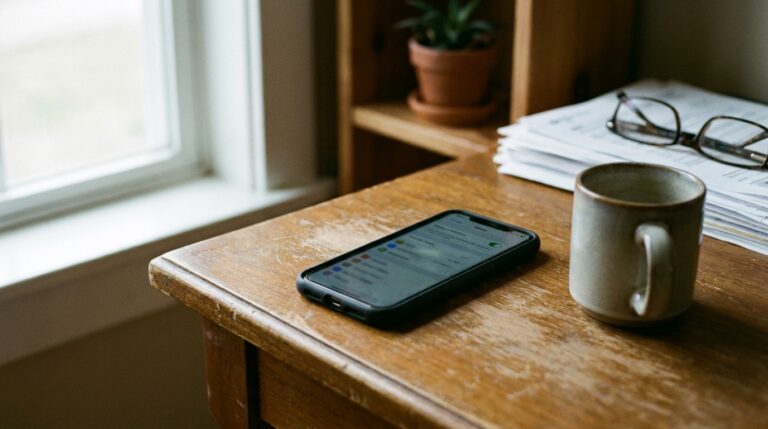
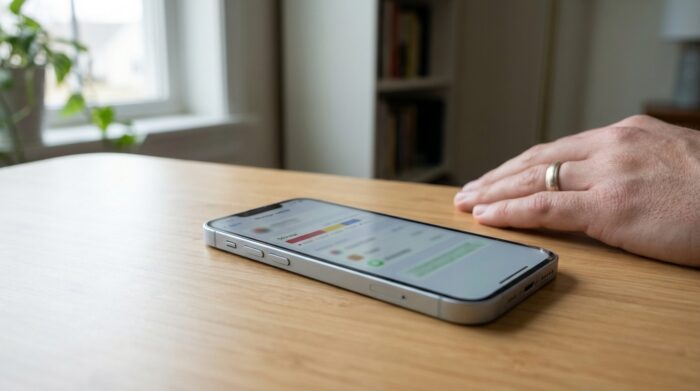
Open Settings > General > iPhone Storage. Available space appears at the top, followed by a list of apps and how much storage each uses. Tap an app to see more detail about its storage.
Recommendations may appear on the same screen. Tap Show All to see the options available for your device. Read each description before enabling it or opening its suggested content for review. Recommendations can differ, so use the ones actually shown on your iPhone rather than expecting a particular option.
Storage categories can help you identify where to look. Photos includes photos and videos in the Photos app; Messages includes conversations and attachments. Apps can include app content, Files app items stored on the phone, and Safari downloads. Media can include music, videos, podcasts, and voice memos.
Choose what to offload or delete
Offloading an app removes the app itself from the phone while keeping its documents and data. This can be useful for an app you may want to reinstall. Deleting an app removes the app and its related data, so choose that option only if you no longer need the app or its stored information.
To have iPhone offload unused apps automatically, open Settings > Apps > App Store and turn on Offload Unused Apps. The setting does not mean every item on the phone will be removed; review the storage screen to see what is using space and what your device recommends.
Other items to review include downloaded videos, documents in the Files app, message attachments, and apps you no longer use. Apple Support says, “Tap Show All to see the recommendations for your device.” Follow the description for each recommendation, and inspect content before deleting it.
Review photos before removing them
If iCloud Photos and Optimize iPhone Storage are enabled, full-resolution photos and videos are kept in iCloud while smaller versions can remain on the iPhone. This can reduce local photo storage, but it does not make iCloud storage and iPhone storage the same thing.
Be careful when deleting photos or videos with iCloud Photos turned on. According to Apple Support, deleting one from the iPhone also deletes it from other devices signed in to the same Apple Account. If your goal is only to reclaim phone space, review the storage recommendations and photo settings before deleting items from your library.
Keep iPhone storage separate from iCloud
iPhone storage is the built-in space on the device. iCloud storage is cloud space used for items such as backups, photos, and files. Changing what is stored locally does not automatically change the amount of iCloud storage in use, and managing iCloud storage does not necessarily clear local phone space.
To check iCloud storage, open Settings, tap your name, then tap iCloud. Tap Storage or Manage Storage to see more detail. Use iPhone Storage when you need to check space on the 13 mini itself, and the iCloud screen when you need to review cloud usage.
Leave cached files to iPhone
Some storage labeled as cached or temporary data is created to help content load. Apple says iPhone removes cached and temporary files when it needs room, so users do not need to delete those files manually. Focus instead on apps, downloads, attachments, and other content you can identify and review on the storage screen.
If the displayed space seems different from what you expect, check the categories and app list on the iPhone itself. Apple notes that cached data and temporary data might not count toward an app’s listed usage.
Frequently asked questions
Where is storage use shown on iPhone 13 mini?
Go to Settings > General > iPhone Storage. Available space appears at the top, and the list below shows app storage use and possible recommendations.
Does offloading an app delete its data?
Offloading keeps the app’s documents and data while freeing the storage used by the app itself. Deleting the app removes it and its related data.
Does deleting a photo free space on all my Apple devices?
When iCloud Photos is in use, deleting a photo or video also deletes it from other devices signed in to the same Apple Account. Review this before removing media.
How do I check iCloud storage instead?
Open Settings, tap your name, then tap iCloud. Choose Storage or Manage Storage to see more detail about cloud storage use.