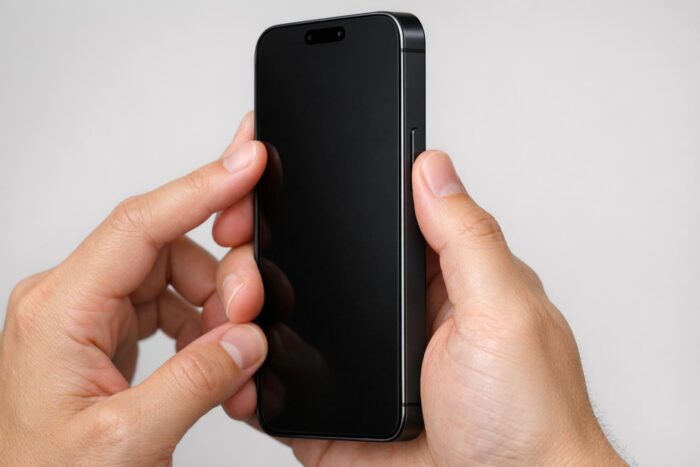
To turn off an iPhone 17, press and hold the side button and either volume button together until the power-off slider appears, then drag the slider to the right. The screen goes dark and the phone shuts down within about 30 seconds. Holding the side button alone will not do it: that summons Siri instead.
The same method works on every model in the family, from the iPhone 17e to the iPhone 17 Pro Max and the iPhone Air, because they all use Face ID and share the same button layout. Below you will find the button method, two ways to do it without buttons, how to restart, and how to force restart a phone that has stopped responding.
How to turn off iPhone 17 with the buttons
This is the method Apple documents for all iPhones with Face ID, and it takes a few seconds:
- Press and hold the side button (right edge) and either volume button (left edge) at the same time.
- Release when the slide to power off slider appears at the top of the screen.
- Drag the slider to the right.
- Wait about 30 seconds for the phone to shut down completely.
Two details trip people up. First, the volume button you pick does not matter: up or down gives the same result. Second, do not keep holding once the slider appears. If you keep pressing, the phone can start an Emergency SOS countdown, and depending on your settings it may call emergency services when the countdown ends. Let go as soon as you see the slider, and tap Cancel if you opened the screen by mistake.
The iPhone 17 also has an Action button and a Camera Control button. Neither plays any part in shutting down, so you can ignore them here. Camera Control is one of the extras covered in our look at what the standard model brings over the 17e, alongside the 120Hz screen and the second rear camera.
Turn off the iPhone without using the buttons
From Settings
Handy if a button is worn, or if you simply prefer menus:
- Open Settings.
- Tap General.
- Scroll to the bottom and tap Shut Down.
- Drag the power-off slider.
With Siri
Ask Siri to “turn off my iPhone.” Siri asks for confirmation before shutting down, so it will not happen by accident. This is the fastest option when the phone is out of reach on a desk or in a car mount.
How to turn the iPhone 17 back on
Press and hold the side button until the Apple logo appears, then let go. Startup takes a few seconds. After a restart, the phone asks for your passcode once before Face ID works again; that is normal security behavior, not a fault.
If nothing happens, the battery may be completely drained. Apple’s advice is to connect the charger, leave it for an hour, and try again.
How to restart an iPhone 17
There is no dedicated restart button. A normal restart is simply a shutdown followed by a start:
- Turn the phone off with the side button and a volume button, as above.
- Wait until the screen is fully black.
- Hold the side button until the Apple logo appears.
You can also ask Siri to “restart my iPhone,” which does both steps for you after a confirmation. A restart clears temporary glitches: an app that will not load, a Bluetooth accessory that refuses to pair, Wi-Fi that keeps dropping. It does not delete any data.
How to force restart a frozen iPhone 17
When the screen is stuck or does not respond to touch, the power-off slider is useless. A force restart cuts power to the system and reboots it. The sequence is quick, so read it once before you start:
- Press and quickly release the volume up button.
- Press and quickly release the volume down button.
- Press and hold the side button until the Apple logo appears, then release.
Apple notes that the last step can take more than 10 seconds. Keep holding even when the screen goes black; the logo shows up after that. If you see the power-off slider instead, you held the side button too early or pressed the volume buttons too slowly. Drag nothing, and start again with faster taps.
A force restart does not erase anything, but use it only when the phone is truly unresponsive. An app that is open while the system is cut off can lose unsaved work.
Which method to use
| Situation | Method | Buttons or path |
|---|---|---|
| Everyday shutdown | Power-off slider | Side button + either volume button |
| Button not working | Settings | Settings, General, Shut Down |
| Hands busy | Siri | “Turn off my iPhone” |
| Minor glitch | Restart | Turn off, then hold the side button |
| Frozen screen | Force restart | Volume up, volume down, hold side button |
| Phone will not start | Charge first | Charge for one hour, then hold the side button |
Does it work the same on the iPhone 17e?
Yes. The iPhone 17e, launched in March 2026, keeps the side button, the volume buttons and the Action button of the larger models, but has no Camera Control. Since shutting down only involves the side and volume buttons, every step in this guide applies unchanged. Our guide to Apple’s most affordable current iPhone covers what else separates it from the rest of the range.
The same goes for older Face ID iPhones back to the iPhone X. Only phones with a Home button, such as the iPhone SE, use a different combination.
FAQ
Why does holding the side button open Siri instead of turning off the phone?
On Face ID iPhones, the side button alone is assigned to Siri. You need to press a volume button at the same time to bring up the power-off slider.
Can I turn off my iPhone 17 if the screen is broken?
If touch no longer works, you cannot drag the slider. A force restart (volume up, volume down, hold side button) still works, and Siri can shut the phone down if it can hear you.
Does turning off the iPhone stop Find My?
Not necessarily. Apple notes on the power-off screen when the iPhone remains findable after it is turned off, as long as Find My is enabled in your settings.
How often should I restart my iPhone?
There is no required schedule. Restart when something misbehaves, or after installing an update if the phone feels sluggish.